 Reachlee Docs
Folders
Group contacts by hand into lists like Hot leads, Customers or VIP, and use those lists in campaigns, filters and the Inbox.
A folder is a list of contacts you choose. A person stays in a folder until you, an automation or a campaign takes them out. One person can be in as many folders as you like.
Use folders when you decide who belongs, for example after a conversation, a sale or a collab request. When the rule is automatic, like "everyone who clicked a link this week", use a segment instead.
Ideas for folders
| Folder | Who goes in | What you do with it |
|---|---|---|
| Hot leads | People who asked about price or availability | Follow up first in the Inbox, send them a launch campaign |
| Customers | People who bought | Thank-you or review-request campaign, exclude them from sales pitches |
| VIP | Your most engaged fans | Early access, giveaways, private links |
| Collab requests | Brands and creators who pitched you | Keep them out of fan campaigns, reply when you're ready |
| Giveaway entrants | Everyone who entered | Announce the winner, invite them to the next one |
| Wholesale enquiries | Business buyers | A separate campaign with trade pricing |
Adding people to a folder
There are five ways, so pick whichever is closest to where you are.
-
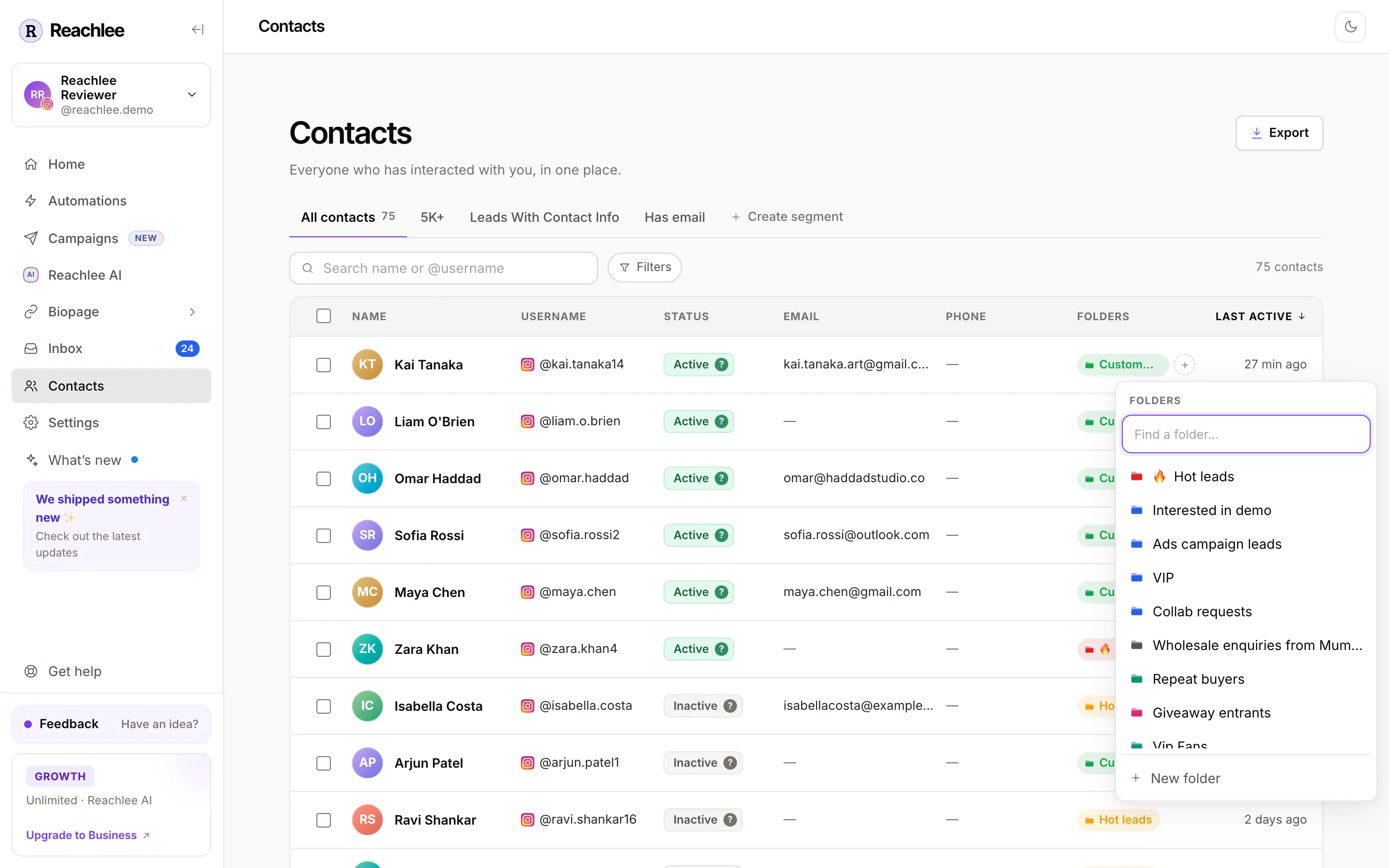
From the Contacts table. Click the + in a row's Folders column, tick folders, or create a new one from the bottom of the menu.
-
In bulk. Select several contacts and click Add to folder in the bar at the bottom. Remove from folder works the same way.
-
From the Inbox. Open a conversation and add the person to a folder from the contact panel, without leaving the chat.
-
Inside a campaign. The Add to folder step files people automatically, for example everyone who answered "Yes, tell me more". It can also remove people from a folder.
-
From campaign results. On a campaign's results page, filter recipients to Finished or Replied, then add all of them to a folder in one click.
Managing folders
Folders show in the sidebar under Inbox while the Inbox is open. Click one to see only those conversations. Hover a folder and open its ⋯ menu. Edit changes the name and colour, and Delete folder removes it. An emoji at the start of the name shows on every folder chip.
Deleting a folder removes the list only. Nobody is deleted from your contacts.
Where folders are used
- Campaign audience. Send a campaign to one or more folders, or exclude folders with Don't send campaign to.
- Filters and segments. The Folder filter can match people who are in a folder, not in it, in any folder, or in no folder.
- Inbox. Filter conversations by folder from the sidebar.
- Export. Filter to a folder, then export that view.
Plan limits
| Plan | Folders |
|---|---|
| Free | 3 |
| Pro, Growth, Business | Unlimited |
Contact folders are not campaign folders
The New folder button on the Campaigns page makes a folder for organising your campaigns, like "Product launches". It never contains people and can't be used as an audience. Contact folders, the ones on this page, hold people. See Organise campaigns.