 Reachlee Docs
Test, send and schedule
Walk through a campaign in the phone preview, send a real test to yourself, then send it now or at a time you choose.
Preview
Click Preview in the top bar. A phone opens beside the canvas and plays the sequence the way a contact sees it, with your text, buttons and {{first_name}} filled in for a sample contact.
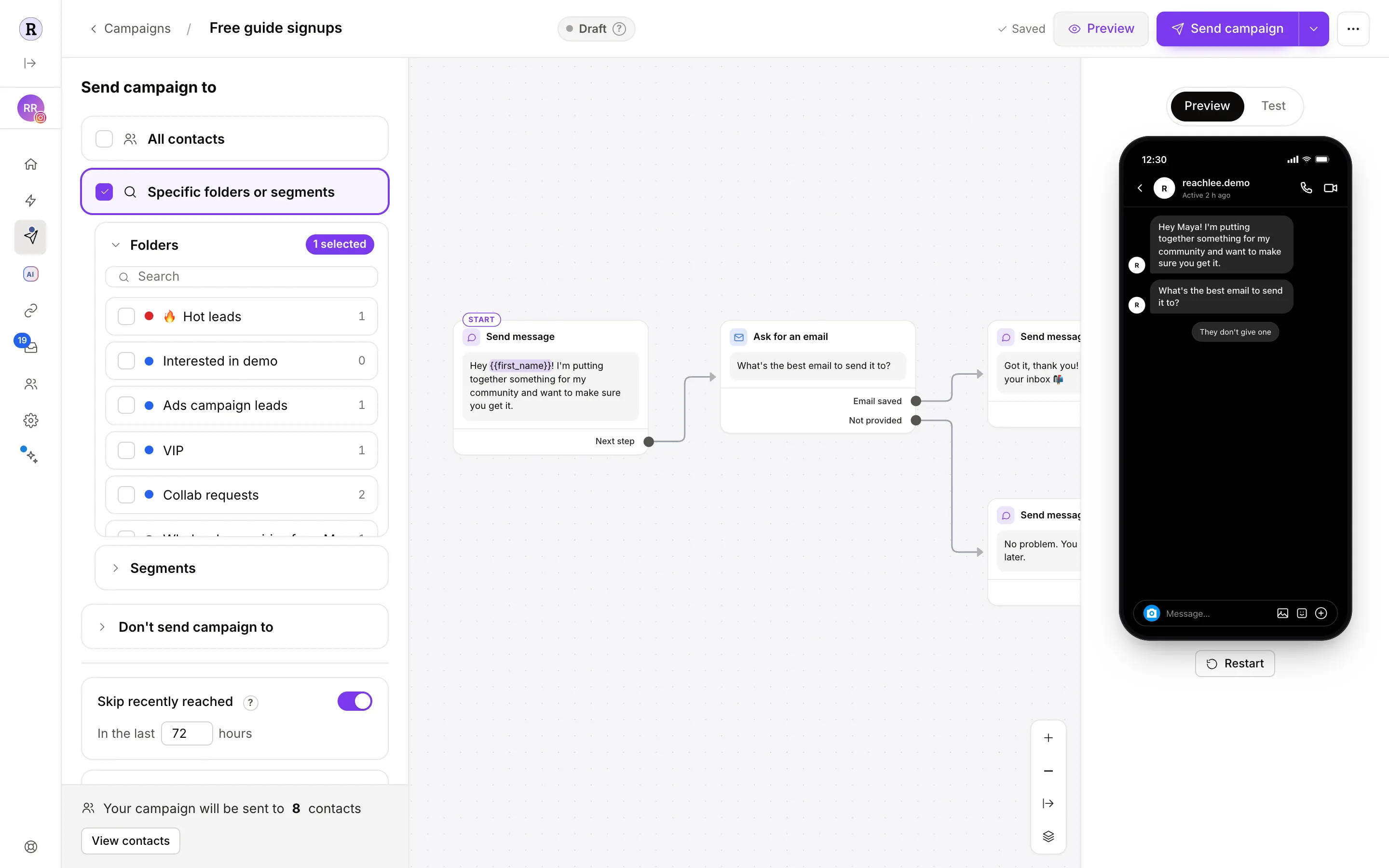
Where the sequence branches, the preview offers a choice for each path, such as They don't give one. Tap a choice to follow that branch. Restart plays it again from the top so you can check every path.
The preview never sends anything.
Send a test
Switch the preview to Test. It sends the campaign for real to one person who can be messaged right now.
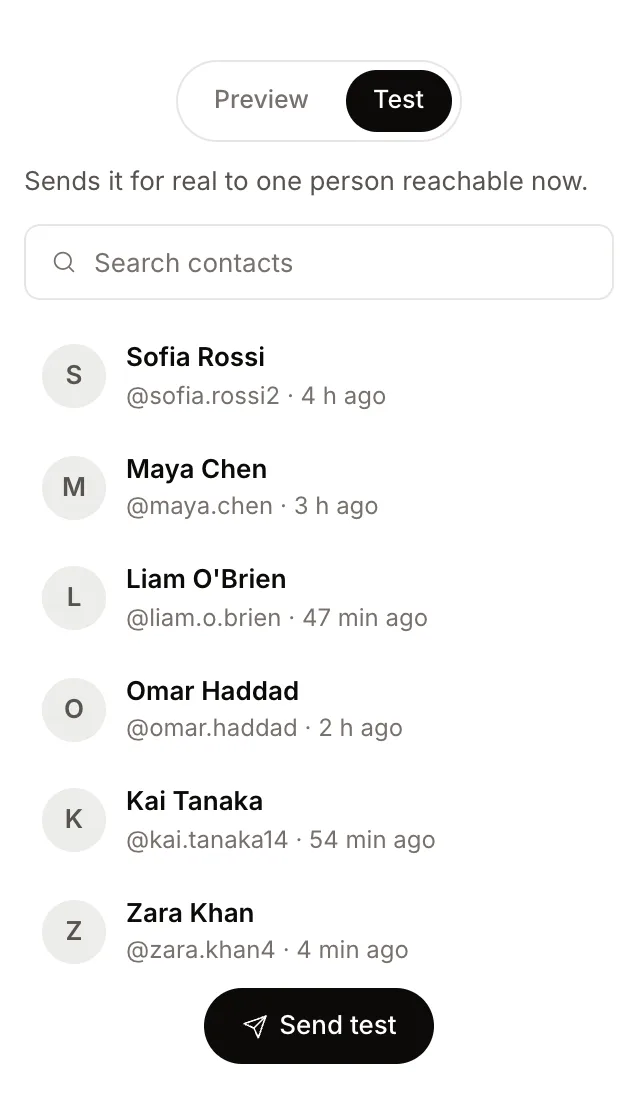
- Search for a contact, ideally your own second account or a teammate who messaged your account in the last 24 hours.
- Select them and click Send test.
- Open Instagram or Messenger on that account and go through the sequence: tap buttons, answer questions, give an email.
Tests run every step for real, including saving answers and adding to folders, but they never count in the campaign's results. Test on every plan, including steps your plan can't send yet.
Testing from your own business account doesn't work
Instagram doesn't deliver DMs from an account to itself. Use a second personal account. Message your business account from it first, so it shows in the Test list.
Send now
Click Send campaign. The confirmation shows how many people get it right away.
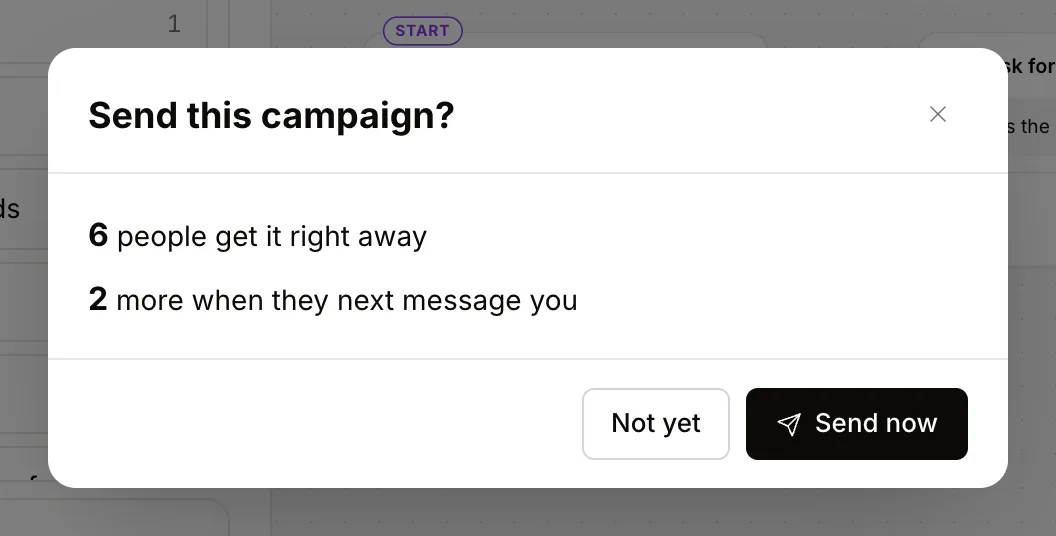
- People who get it right away are Active: they messaged you in the last 24 hours.
- Everyone else in the audience waits, if Keep it open is on, and gets it the moment they next message you.
- If nobody can receive it right now, the dialog says so. You can still send it to reach people as they message you.
Click Send now. Messages go out gradually over the first minutes rather than all at once, which keeps your account within Meta's rate limits.
If anything in the sequence is incomplete, or uses a step or setting your plan doesn't include, sending stops and tells you what to fix or which plan you need.
Schedule for later
Pro and above. Click the arrow next to Send campaign and choose Schedule for later. Pick the date and time.
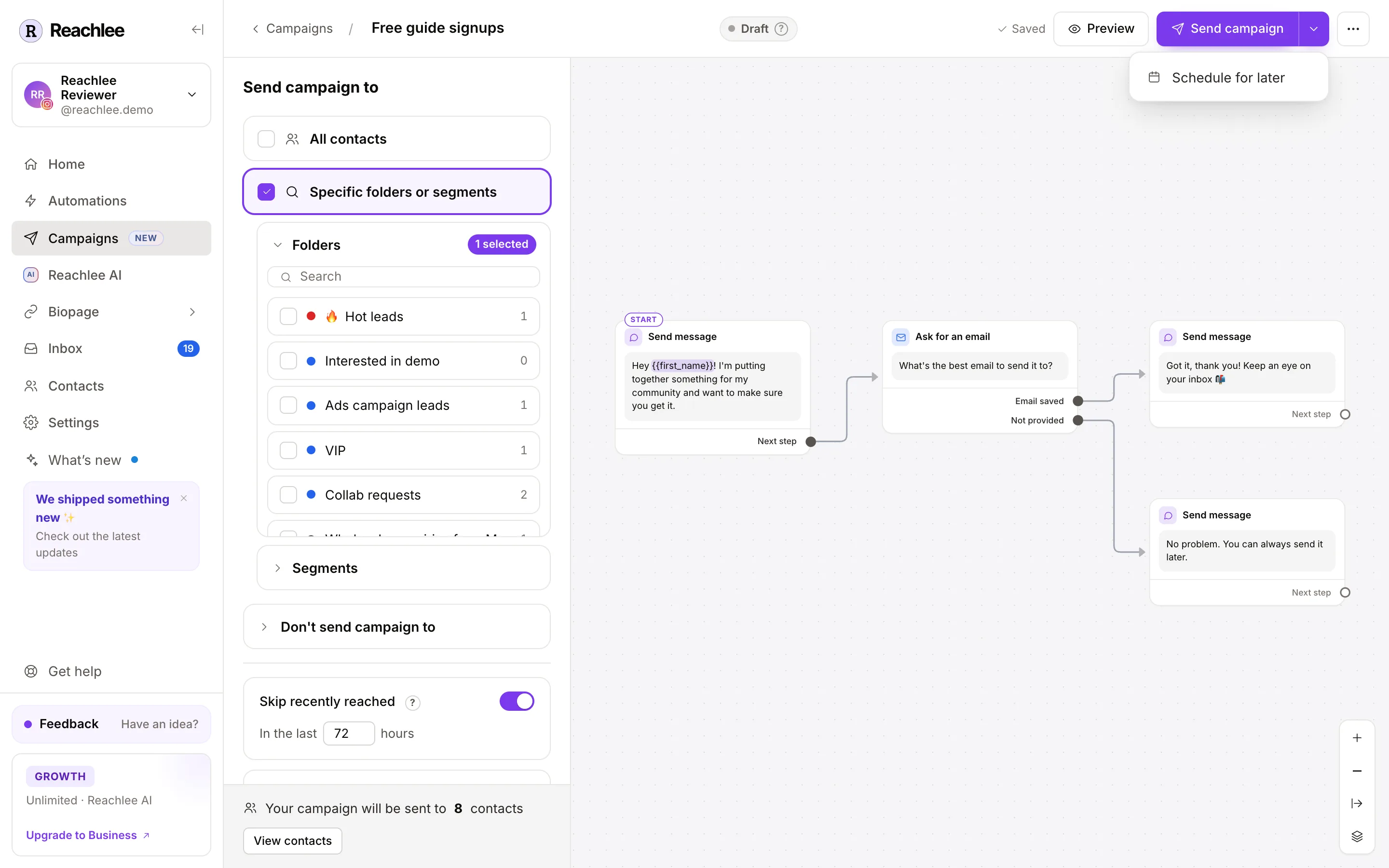
A scheduled campaign can still be edited until it goes out. To cancel, open it and click Cancel schedule in the top bar; it goes back to a draft.
The audience is worked out when the campaign sends, not when you schedule it. People who join a folder or start matching a segment before then are included.
Campaign statuses
| Status | Meaning |
|---|---|
| Draft | Not sent yet. Edit freely. |
| Scheduled | Goes out at the time you picked. Still editable until then. |
| Sending | Sequences are in flight: messages going out, people mid-flow. |
| Waiting | Everyone reachable has been sent to. The rest get it when they next message you, until the campaign closes. |
| Done | Finished. Nobody else will receive it. |
| Stopped | You stopped it. Sequences in flight were ended. |
Hover the ? on the status pill to see dates and how many people are still waiting.
After sending
Once a campaign is sending, its sequence is locked so everyone gets the same thing. Open it to see the results; View flow shows the sequence read-only.
- Stop ends the campaign now. People mid-sequence get nothing more, and nobody who's waiting receives it.
- Duplicate copies the sequence, audience and rules into a new draft. Use it to fix something and send again, or to reuse a campaign that worked.