 Reachlee Docs
Create a campaign
Start a campaign from a template or a blank canvas, and find your way around the editor.
Start a campaign
There are two ways in:
- Campaigns → New campaign. Pick a starting point and click Create campaign.
- From Contacts. Select people in the Contacts table and click Send campaign in the bar at the bottom. The new campaign's audience is exactly those people.
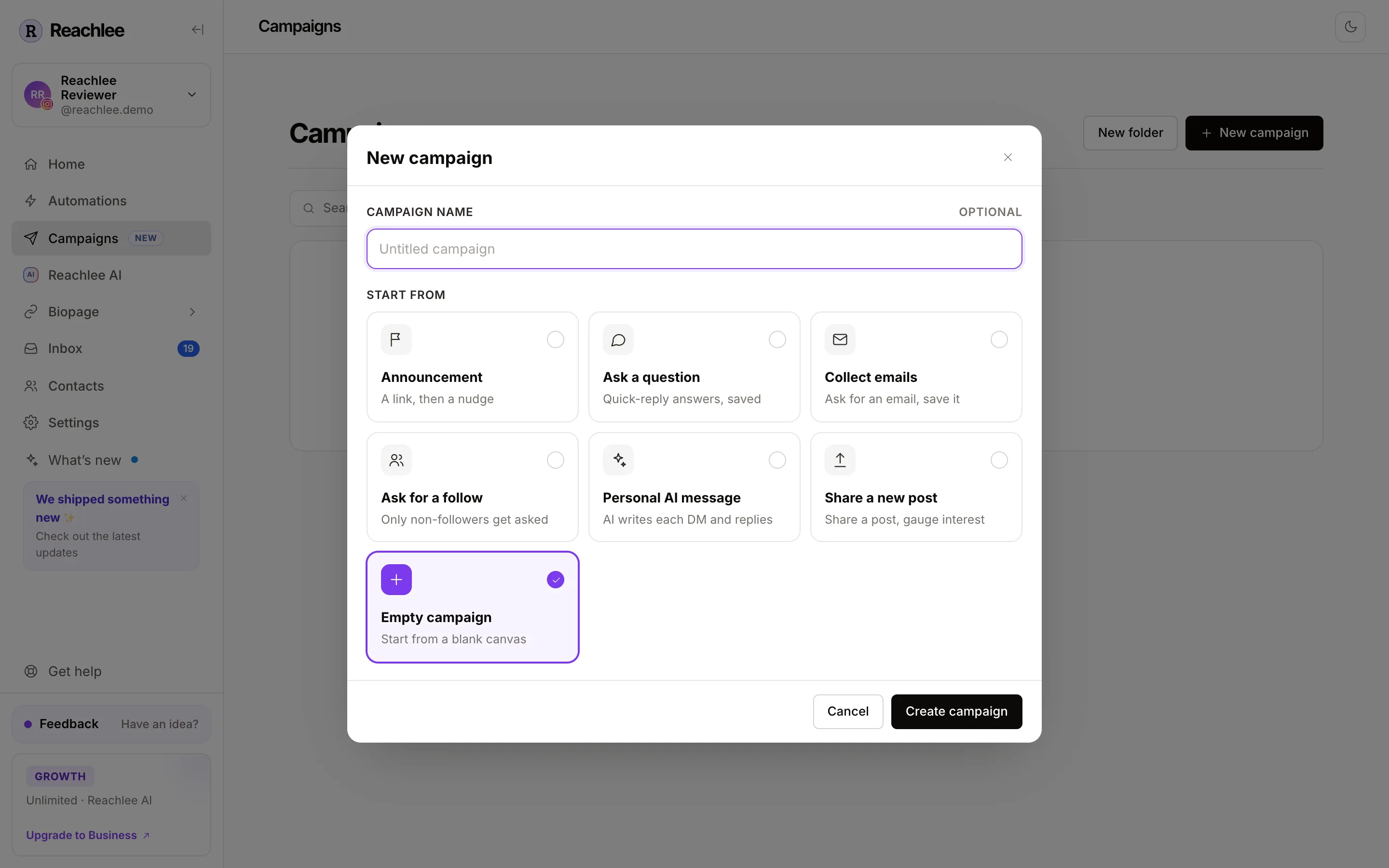
Campaign name is optional. Leave it empty and the campaign is called Untitled campaign; you can rename it any time from the title at the top of the editor. Only you see the name. It never appears in the DM.
Start from gives you a ready-made sequence to edit, or an empty canvas. Every template is explained on Templates.
The editor
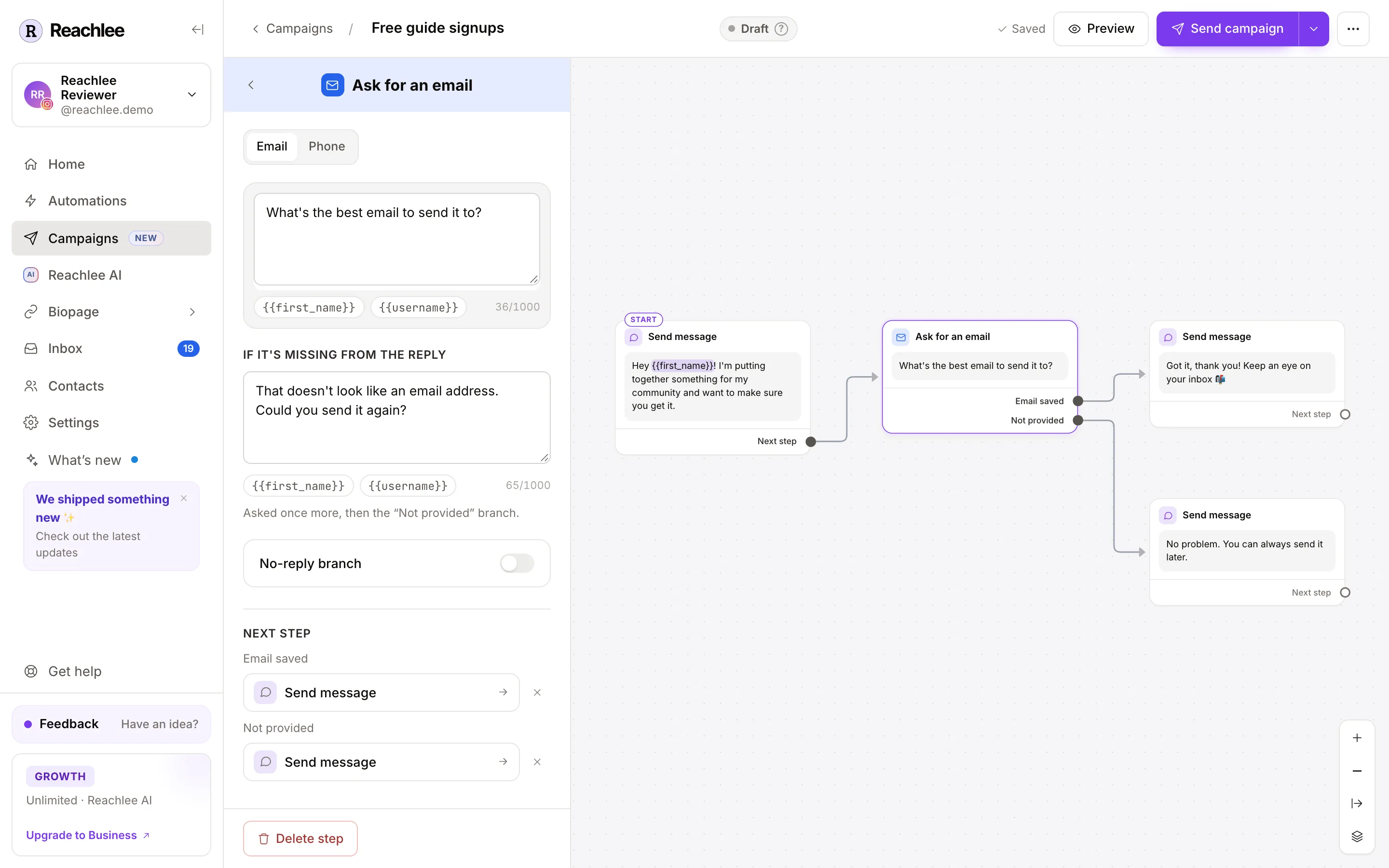
| Area | What it does |
|---|---|
| Top bar | The campaign's name, its status, Saved (changes save automatically), Preview, Send campaign, the arrow for Schedule for later, and ⋯ for Duplicate and Delete |
| Left pane | Shows the audience and rules until you click a step. Then it shows that step's settings; the back arrow returns to the audience |
| Canvas | The sequence. Each card is one step, and lines connect each exit to the step that follows |
| Zoom controls | Bottom right: zoom in, zoom out, fit everything on screen |
Reading a card
Every card has a title, a preview of what it sends, and one or more exits along its bottom edge, for example Email saved and Not provided. Each exit is a branch. The card marked START is what everyone gets first.
A person follows one path at a time. When they reach an exit with nothing connected, their sequence ends.
Editing a step
Click a card to open its settings in the left pane. You can also click the text on a card and type there directly. Settings include the message text, buttons, answers, delays and where each exit goes.
Insert personal details with the {{first_name}} and {{username}} chips under any text box. {{first_name}} is the first word of their profile name. If they have no profile name, it falls back to their username.
Adding steps
- From a card's exit. Click the empty circle at the end of an exit, or drag from it into empty canvas, and pick a step.
- From the step settings. Under Next step, click Add next step for any exit that isn't connected yet.
- On an empty canvas. Quick buttons add a first Send message, Ask a question or Send a link, or Other steps… for the full list.
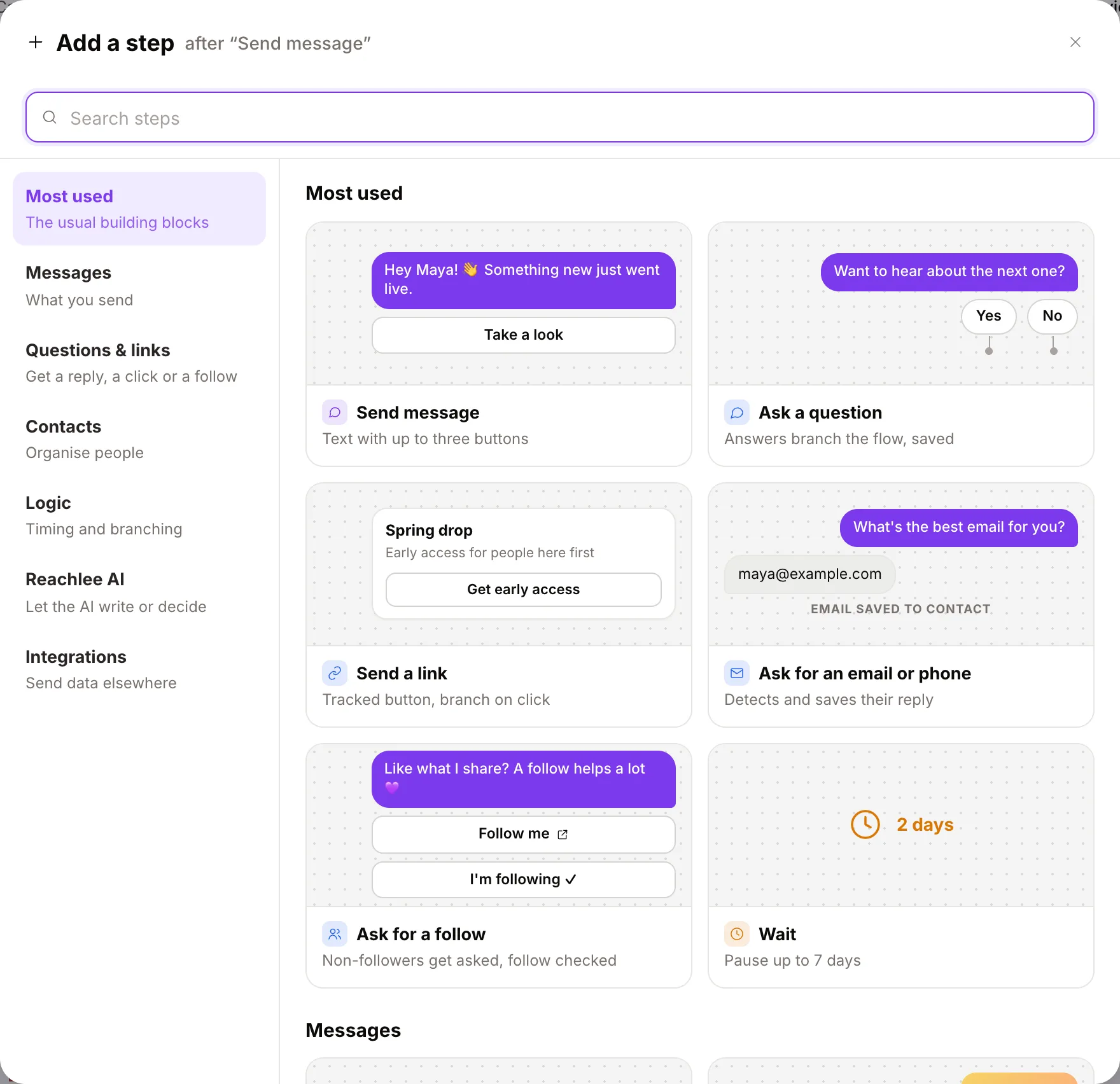
The step picker shows every step grouped into Messages, Questions & links, Contacts, Logic, Reachlee AI and Integrations, with a small preview of how each looks in the DM. Type in the search box to find one fast.
Connecting, moving and deleting
- Drag a card to move it. The layout is only for you; it doesn't change the order people go through.
- Drag from an exit onto another card to connect them. Several exits can lead to the same card.
- Select a line and press Delete to disconnect it, or use the × next to a next step in the settings.
- Select a card and press Delete, or click Delete step at the bottom of its settings.
Problems the editor finds
If a step is missing something, such as an empty message or a link without a URL, the card is marked and a banner at the bottom of the canvas names the first problem. Click the banner to jump to that step. You can't send until every problem is fixed.
Limits
| Limit | Value |
|---|---|
| Steps per campaign | 60 |
| Characters per message | 1,000 |
| Buttons per message | 3 |
| Quick-reply answers per question | 13 |
| Characters per button or answer label | 20 |
| Longest wait | 7 days |
| A/B split variants | 4 |