
 Reachlee
for Claude.
Add Reachlee as a connector in Claude, sign in once, and run your automations, reports and inbox from any chat.
https://www.reachlee.co/api/v1/mcp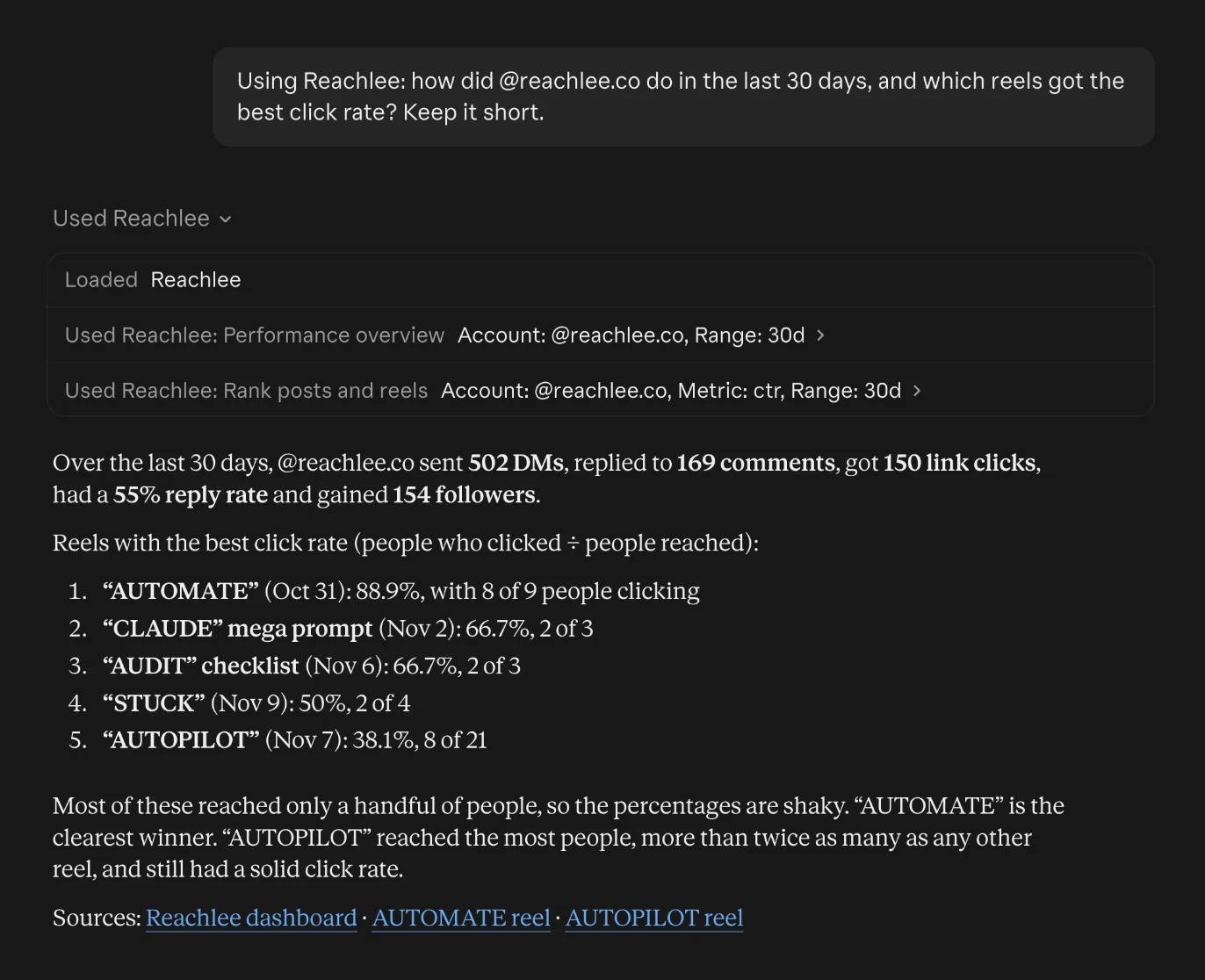
Connect Claude.
About a minute.
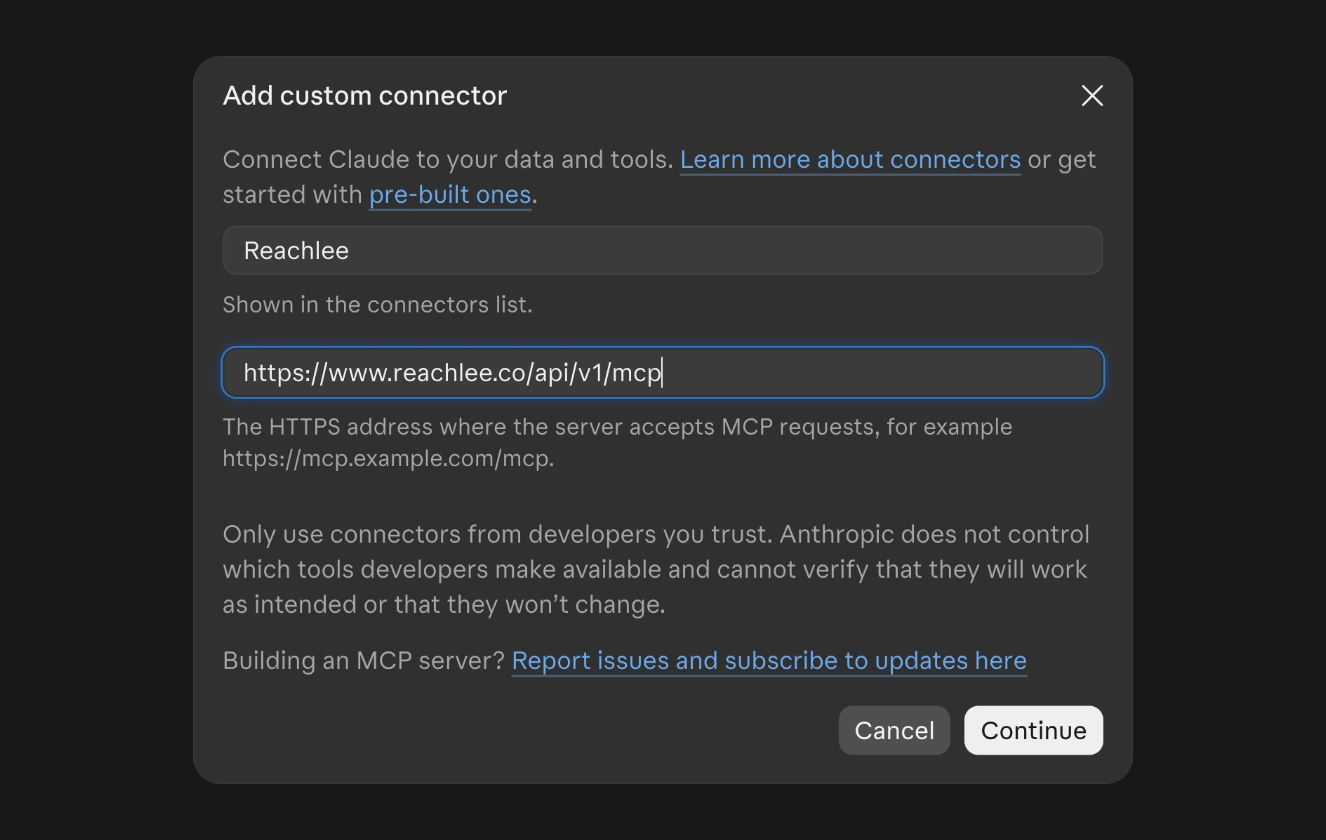
Add the connector
In Claude, open Customize → Connectors → Add custom connector. Name it Reachlee and paste the server URL.
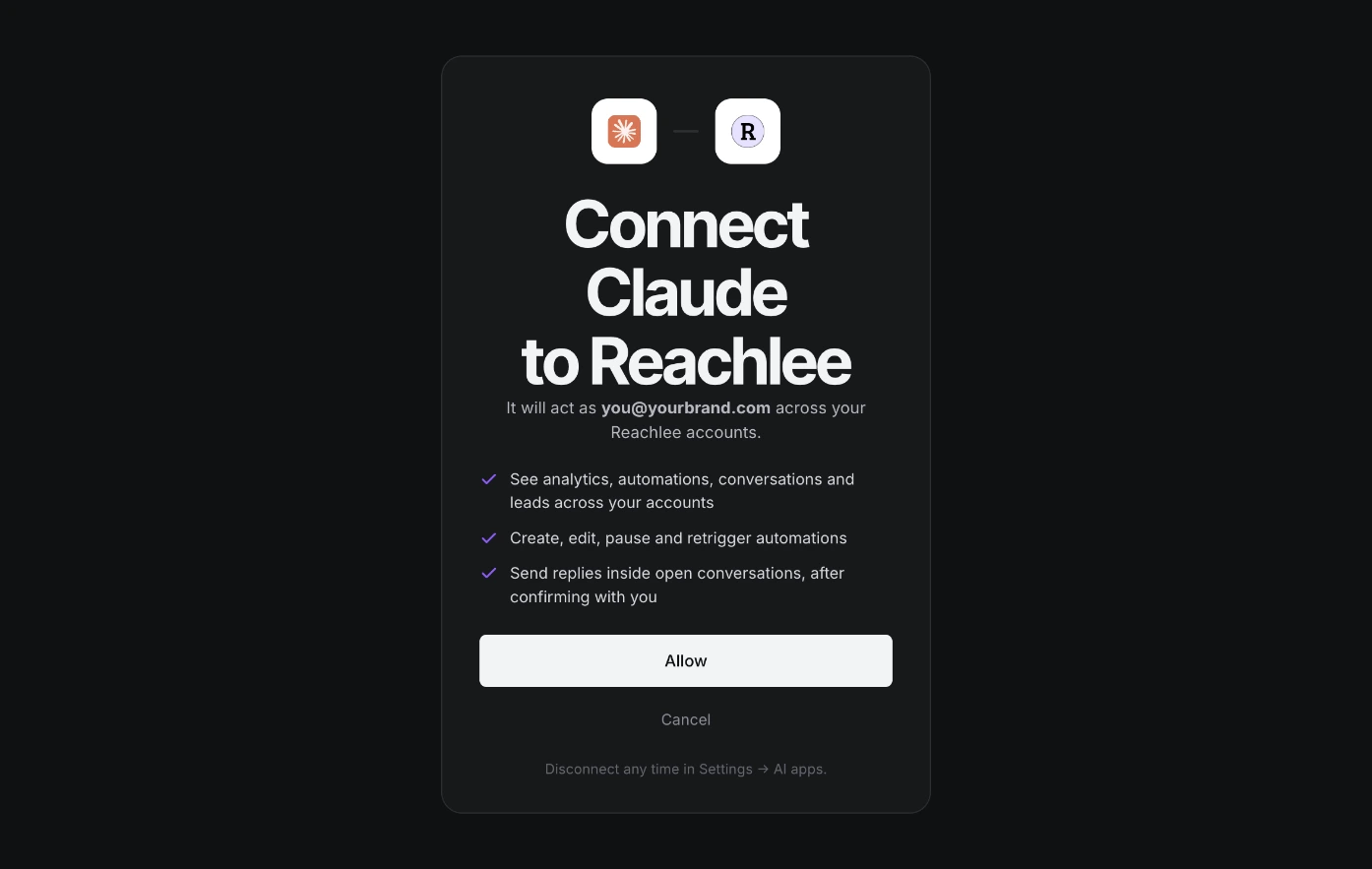
Sign in with Reachlee
Sign in with the Google account you use for Reachlee, check what Claude may do, and click Allow.
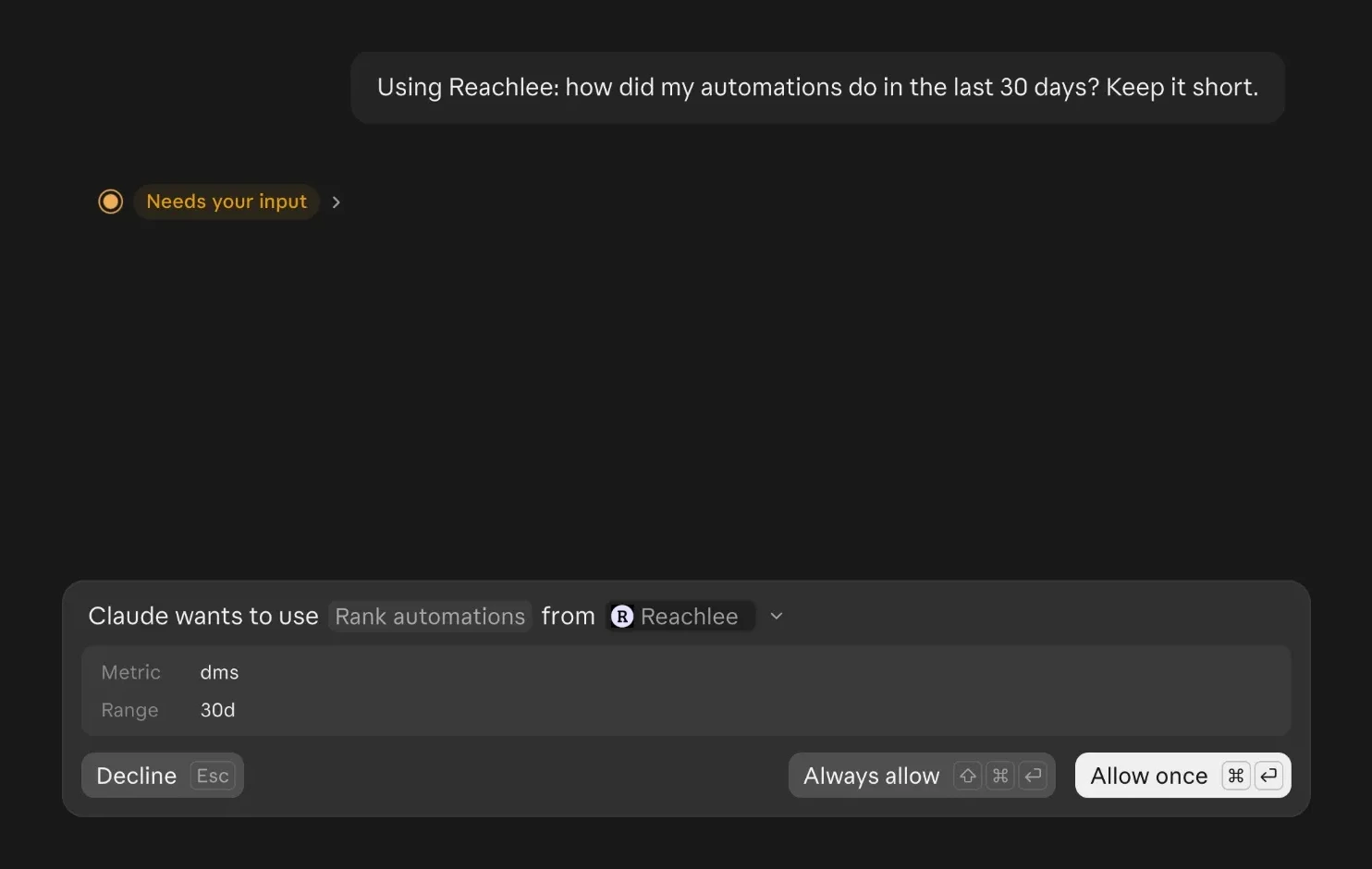
Ask
Ask in plain language. Claude asks before it uses a Reachlee tool: Allow once or Always allow.
What to ask Claude.
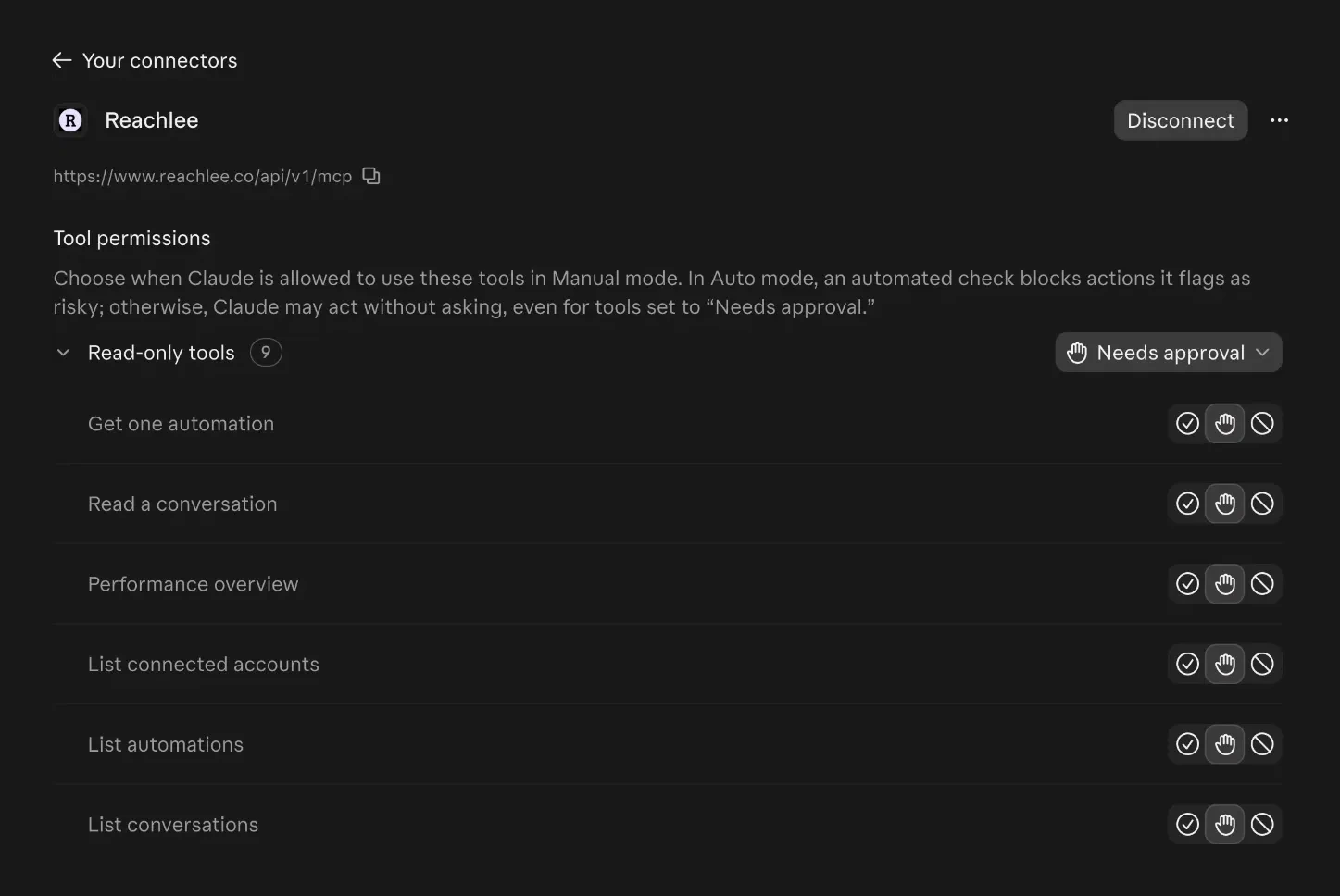
Pick what Claude may do on its own.
Every Reachlee tool shows up in Claude's connector settings. Let read-only tools run freely, and keep anything that changes your account on Needs approval.
Ask in your own words.
16 tools do the rest.
You stay in control.
- 01
Sign in with Reachlee
You approve access on Reachlee's own page with Google. The assistant never sees a password or an API key.
- 02
It asks before changes
Reading runs right away. Sending a message, a Retrigger or changing an automation is previewed and confirmed with you first.
- 03
Instagram's rules still apply
Every send goes through the same checks as the app: replies only to people who wrote first, inside the 24-hour window.
- 04
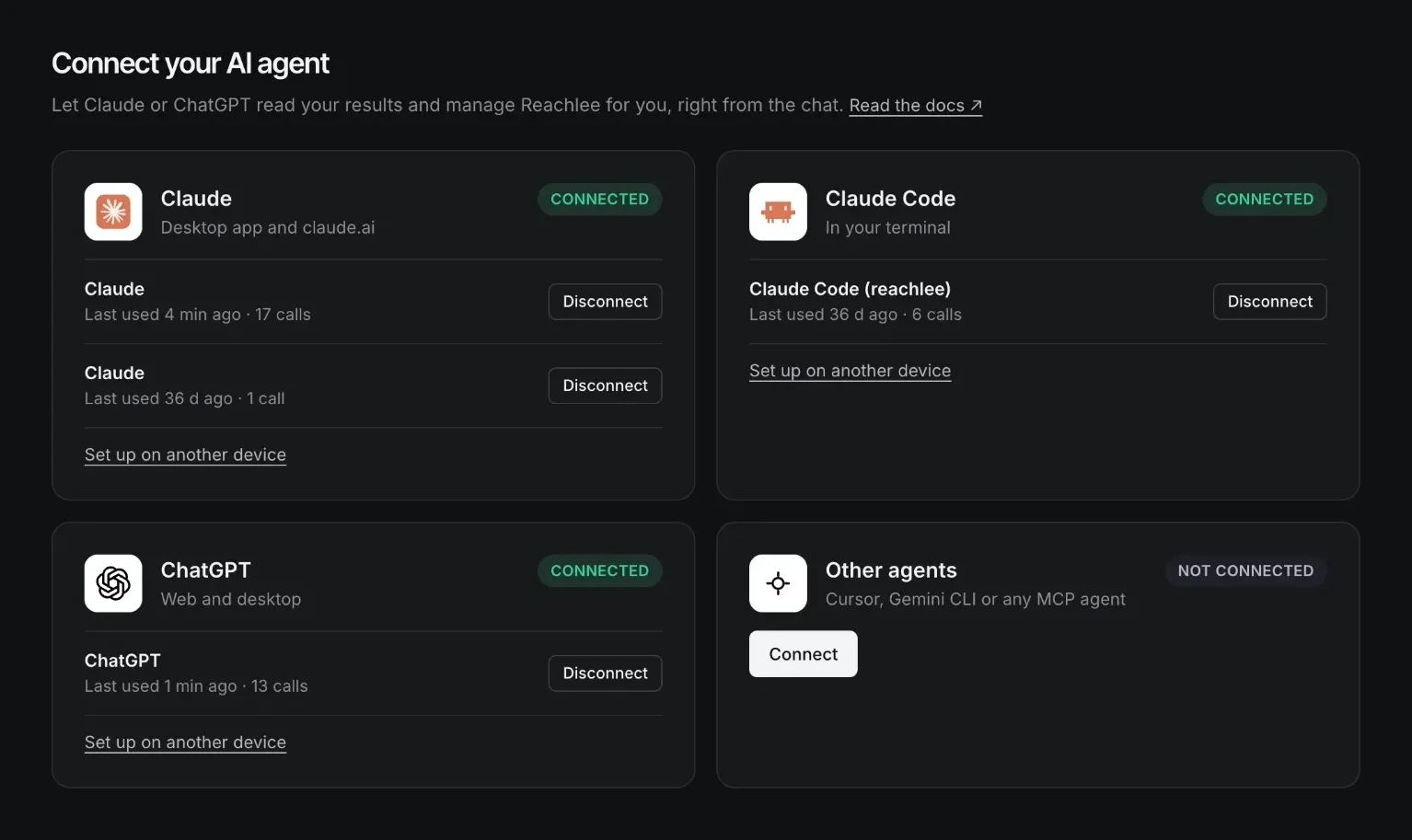
Disconnect any time
Every connected assistant is listed in Settings → AI apps. Disconnect one and its access stops immediately.
Claude questions
Which Claude plans support it?
Custom connectors work on every Claude plan, including Free, which allows one. On Team and Enterprise, an owner adds the connector for the organisation first.
Is Reachlee in Claude's connector directory?
Not yet. You add it as a custom connector with the server URL. It takes about a minute.
How do I disconnect?
Remove the connector in Claude's settings, or open Settings → AI apps in Reachlee and click Disconnect. Either one revokes access immediately.
 Claude Code
 Cursor
 Gemini CLI
 Instagram